To make a video loop, you’re essentially editing a clip so the end flows right back into the beginning without anyone noticing. It’s all about creating an endless repeat. Most of the time, this means trimming your footage to find two almost identical frames or using a subtle crossfade to smooth over the transition. The real art is making the loop completely invisible.
Why Seamless Video Loops Dominate Social Feeds
Ever catch yourself watching the same short clip on repeat without even realizing it? That’s the magic of a perfect video loop. It’s a subtle but ridiculously effective way to grab and hold someone's attention in the endless scroll.

This isn’t just a neat creative trick—it’s a massive strategic advantage. Social media algorithms are built to promote content that keeps people glued to their screens. When a video loops, it quietly racks up key engagement metrics that algorithms love.
The Algorithm's Best Friend
Let’s talk about watch time. If someone watches your 5-second video three times because the loop is so clean, you’ve just tripled your watch time for that single view. That’s a powerful signal to platforms like Instagram and TikTok that your content is a winner, pushing them to show it to a wider audience. This simple mechanic is one of the easiest ways to boost your reach. Getting a handle on the prevalence of video loops on TikTok really drives home how crucial this format has become.
The core principle is simple: longer watch time tells the algorithm your content has value. A seamless loop is one of the easiest ways to increase that watch time without creating longer content.
And the numbers are staggering. Looping video is basically the backbone of the modern internet. Since Instagram introduced auto-looping in 2015, its Reels feature has exploded to over 2 billion monthly users as of 2023. At the same time, YouTube Shorts, which also loop by default, blew past 70 billion daily views globally last year. It’s a testament to just how addictive the format is.
Looping Video Impact Across Platforms
It’s clear that different platforms have baked looping into their core experience, each offering a unique benefit to creators who master it.
Mastering the loop isn't just about one platform; it's about understanding how to keep your audience engaged wherever they are.
Psychological Impact and Brand Benefits
Beyond just gaming the algorithm, a good loop creates a satisfying, almost hypnotic experience. It can turn something as simple as steam rising from a coffee mug or a product slowly rotating into something you can't look away from. This constant motion keeps the eye engaged, making it that much harder to scroll past.
This is a huge reason why so much content is now vertical—it’s a format built for this kind of endless playback. For a deeper dive, check out our guide on creating video in portrait mode.
For brands, this all adds up to real, tangible results:
- Increased Message Retention: When someone sees your message or product multiple times in a few seconds, it sticks.
- Enhanced Brand Perception: A polished, professional loop just looks good. It signals quality and a keen eye for detail.
- Higher Engagement Rates: People are far more likely to comment on or share something that genuinely captured their attention.
Mastering the Manual Method for a Perfect Loop
Automated tools are great for speed, but manually crafting a loop is where the real artistry comes in. Getting hands-on in a video editor gives you complete control, letting you create a truly invisible transition that feels absolutely seamless. This is less about fancy software features and more about your eye for detail.
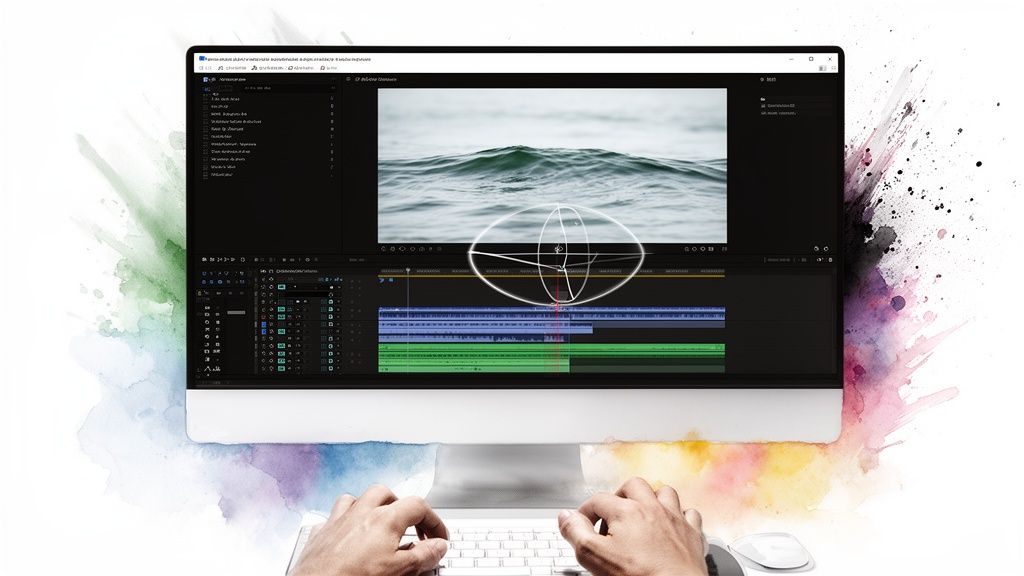
The core challenge is making the cut totally undetectable. You aren’t just trimming the ends of a clip; you’re hunting for that one perfect moment where the action can reset naturally. It takes a bit of patience and a good feel for your footage. Of course, you'll need reliable tools, so you might want to explore the best video editing software for beginners to find an application that clicks with your workflow.
Finding Your Natural Rest State
The real secret to an effortless manual loop is finding a 'rest state' in your video. This is a point where the main subject and any background motion are at their calmest or most repetitive. A waterfall with its continuous, chaotic motion is a perfect candidate. A person waving, on the other hand, has a clear beginning and end, making it much tougher to loop without it looking awkward.
Let's say you have a clip of a candle flame flickering. The goal is to find a single frame where the flame's shape and position are nearly identical to another frame a few seconds later. Those two matching points become your new in and out points. Your editor’s frame-by-frame navigation—usually the arrow keys—is your best friend for this kind of precision work.
The Overlap and Dissolve Method
Sometimes, a perfect hard cut is just not in the cards, especially with subtle changes in lighting or background elements. This is where the dissolve method comes to the rescue. It’s a classic technique to make a video loop feel smooth even when the frames don't quite match up.
Here’s how it works:
- Duplicate Your Clip: Start by placing the same video clip on two separate tracks in your timeline, one right above the other.
- Stagger the Clips: Nudge the top clip a few frames to the left so it starts a little bit earlier than the one below it.
- Trim the Ends: Now, trim the end of the top clip and the beginning of the bottom clip. You're creating a small overlap where both clips are visible at the same time.
- Apply a Cross-Dissolve: Add a short cross-dissolve transition to the beginning of that top clip and the end of the bottom one.
This little trick blends the start and end of your video together, effectively masking the cut. The key is to keep the dissolve incredibly short—often just 10 to 15 frames—so it's felt rather than seen.
A great loop isn't about finding a magical button in your software. It’s about patiently scrubbing through your timeline, frame by frame, until you find that one perfect moment where the end can become the beginning again without anyone noticing.
This hands-on approach definitely takes practice, but it's a fundamental skill for any editor. It teaches you to look at your footage with a critical eye, really understanding motion, timing, and rhythm. Once you master these manual techniques, you can create a high-quality loop from just about any piece of footage, no matter what tools you're using.
Advanced Techniques for an Invisible Flow
Alright, once you've nailed the basics of trimming and crossfading, it's time to dig into the techniques that create truly invisible loops. This is what separates a pretty good loop from a flawless one, turning a simple repeat into something mesmerizing. These methods require a bit more finesse, but the professional results are well worth it.
Sometimes, a simple dissolve just won't cut it. This is especially true when you're dealing with complex, unpredictable motion like flowing water or leaves blowing in the wind. That's where more sophisticated transitions come into play, helping you create a loop that feels like magic.
Blending Frames with Morph Cuts
A morph cut (sometimes called an optical flow transition) is an incredibly powerful tool you'll find in editors like Adobe Premiere Pro. Instead of just fading between two clips, it actually analyzes the pixels in the final and initial frames. Then, it intelligently warps and blends them together, creating brand-new frames to make the transition look like one continuous shot.
This technique is a lifesaver for interviews or static shots where a subject might shift just slightly. But it also works wonders for looping complex natural textures. For instance, if the clouds in your landscape shot don't perfectly align at the seam, a morph cut can smooth over that jump in a way that’s nearly impossible to spot.
Just keep the transition short—a few frames is all you need for the best effect.
Handling Audio for a Flawless Loop
A jarring audio cut is the quickest way to ruin an otherwise perfect video loop. That sudden click or pop at the transition point instantly shatters the illusion. Fortunately, getting your audio to loop seamlessly is pretty straightforward.
You have two main tools at your disposal:
- Cut on a Zero Crossing: In your audio timeline, zoom way in until you can see the actual waveform. A "zero crossing" is the point where the waveform crosses the center line, which represents silence. If you make your cut at this exact point, you drastically reduce the chances of an audible click.
- Apply an Audio Crossfade: Just like a video dissolve, an audio crossfade smoothly blends the end of your audio track with its beginning. A short, constant-power crossfade of about 3-5 frames is usually all it takes to create an imperceptible loop for ambient sounds.
A seamless loop is a full sensory experience. If the sound doesn't loop as cleanly as the visuals, the entire effect is compromised. Always give your audio the same level of attention as your video frames.
Creating Infinite Motion Graphics Loops
When you want to make a video loop with animated text or graphics, the game changes from trimming footage to managing keyframes. The whole goal is to make sure the final state of your animation is absolutely identical to its initial state.
Let’s say you're animating a logo that slides in from the left, pauses, and then slides out to the right. To make that an infinite loop, you just have to bring it back to its starting position.
- Set Identical Keyframes: Animate your element through its full motion. Once it's done, create one last keyframe that is an exact copy of your very first keyframe.
- Ease Your Keyframes: To avoid a robotic, jerky motion, apply "easing" to your keyframes. This creates a much more natural acceleration and deceleration, making the loop feel smoother. Most animation software has an "Easy Ease" function or something similar.
This keyframe-matching principle works for any property you animate—position, scale, rotation, or opacity. As long as the beginning and end values are a perfect match, you can build complex, engaging animations that cycle forever without a single visible jump.
You’ve done the hard work of crafting a perfect loop. Don’t let it all fall apart at the finish line by choosing the wrong export settings. A file that’s too big will stutter, a low-quality render will look like a pixelated mess, and the wrong format can cause that dreaded "black frame flash" before it repeats.
Getting your export right is the last, absolutely critical step to making a video loop that works flawlessly no matter where you put it.
First, let's clear up a common point of confusion: MP4 vs. GIF. A GIF file has looping baked right into its DNA; it's designed to repeat forever. An MP4 video, on the other hand, relies on the player—whether that's the Instagram app or your web browser—to handle the looping. For just about every modern use case, MP4 is the way to go. It delivers much higher quality at a fraction of the file size.
Optimizing for Social Media and the Web
When you're exporting for platforms like Instagram Reels or TikTok, the game is all about matching their preferred specs. This helps you avoid their aggressive, often quality-killing compression algorithms. They're going to re-encode your video no matter what, so give them a high-quality file to start with.
Here are my go-to settings that work almost every time:
- Format: MP4. No contest. It’s the universal standard for a reason.
- Codec: Stick with H.264. It's the workhorse codec, offering fantastic compression and near-universal support.
- Resolution: For vertical video, 1080x1920 is the magic number. Anything higher is usually overkill and just gets downscaled by the platform anyway.
- Bitrate: I usually aim for a variable bitrate (VBR) with a target between 8-12 Mbps. This keeps file sizes reasonable without any noticeable drop in visual clarity.
For website background videos, the priorities flip. Here, speed is everything. A gorgeous background video that takes forever to load is worse than having no video at all. The goal is to shrink that file size as much as possible while keeping the video looking crisp. Understanding the basics of what is video encoding can make a huge difference in finding that perfect balance for the web.
Optimal Export Settings for Looping Videos
Here’s a quick reference table to help you dial in your settings for the most popular platforms. Think of this as your cheat sheet for making sure your loop looks great and loads fast, every time.
This table should get you 90% of the way there, but always remember that the best settings are a delicate balance between quality, file size, and the platform’s specific demands.
A common pitfall, especially with web videos, is that "black frame flash" between loops. It happens when the browser has to re-buffer the file. You can usually prevent this by making sure your video is highly compressed and by using the
autoplay,loop,muted, andplaysinlineattributes on your HTML video tag.
At the end of the day, there's no substitute for real-world testing. A loop that plays perfectly on your high-end editing machine might stutter on a five-year-old phone with a weak data connection. Always check your exports on the devices your audience actually uses before you hit publish.
How to Automate Video Looping for Bulk Content
Putting together a perfect loop by hand is satisfying, sure, but it's just not realistic when you're dealing with tons of content. For publishers, social media managers, and e-commerce brands, the real trick is to scale up production without letting the quality slide. This is exactly where automation steps in, turning a tedious, frame-by-frame chore into a smooth, hands-off workflow.
Automating the process to make a video loop can be as simple as running a script or as sophisticated as using an AI platform. The best path for you really depends on your team’s comfort with technology and the sheer size of your content library. Either way, you're buying back time for more creative work.
Using FFmpeg for Batch Processing
If you're comfortable with a command line, FFmpeg is an absolute powerhouse. It's an open-source tool that can process, convert, and tweak video files in just about any way you can think of—including creating seamless loops in bulk. Think of it as the Swiss Army knife for video pros.
Instead of opening up every single file in an editor, you can write one script to apply your looping logic to an entire folder of videos at once. A simple command, for example, can create a crossfade between the start and end of a clip. Doing that by hand would take minutes for each video; with a script, it's done in seconds. This is perfect for generating hundreds of looping product shots for a website or a batch of ambient background clips.
Here's the basic idea of how a script like that would work:
- Split the Clip: First, the script isolates the first and last few seconds of the video.
- Apply a Crossfade: It then lays these two pieces over each other and applies a fade effect.
- Stitch it Together: Finally, it joins the modified segments back into a single, seamless loop.
It takes a bit of time to get the hang of it, but for technical teams, the efficiency boost is huge.
Automating video tasks isn't just about speed; it's about consistency. A script applies the exact same logic every single time, ensuring every looped video meets the same quality standard without human error.
AI-Powered Automation Platforms
Beyond command-line tools, AI-driven platforms are the next evolution in content production. These systems don't just follow a pre-written script; they actually analyze the video content to make smart creative choices. This is where a platform like Aeon really shines for publishers who need to churn out video at a massive scale.
An AI can scan your entire footage library, find the most stable or visually repetitive moments, and automatically pick out the perfect points to create a loop. It can then apply subtle transitions like morph cuts or dissolves where needed, basically mimicking the decisions an experienced human editor would make. If you want to dive deeper into this, check out our guide on how automatic video editing can streamline your workflow.
This approach completely flips the script for creative teams. Instead of getting bogged down in hours of repetitive editing, they can focus on big-picture strategy and creative direction. The AI takes care of the grunt work, making sure a steady flow of high-quality, perfectly looped content is always ready for your social feeds, website, and ad campaigns.
Of course, even with the basics down, you're bound to run into a few tricky situations when trying to create a perfect loop. Let's walk through some of the most common questions and sticking points that editors face.
How Do I Loop Continuous Motion?
What happens when your subject never stops moving, like someone walking completely across the frame? Just cutting and repeating will look jarring and unnatural.
The go-to solution here is the "boomerang" or "ping-pong" effect. It's simple: play the clip forward, then immediately play it in reverse. This creates a smooth, back-and-forth motion that’s inherently loopable. Pretty much every video editor out there has a quick-and-easy feature for this.
If you're feeling adventurous and have some serious time on your hands, you could jump into a tool like Adobe After Effects. The more advanced technique involves masking your subject at the end of the clip and then carefully blending them back to their starting position. Just be warned, this is a complex visual effects task that requires a lot of skill to pull off convincingly.
What Is the Best Way to Handle Audio?
Nothing ruins a great visual loop faster than a clunky audio cut.
If you're working with music, the trick is to find a natural resolution point in the track—think the end of a four or eight-bar phrase where the melody feels "finished." Cutting at that exact spot makes the repeat feel intentional and clean.
For ambient sounds like wind, rain, or a distant crowd, your best bet is to find a section that's relatively quiet and consistent. You don't want any sudden noises or changes in volume right at the loop point.
The real secret to seamless audio is a tiny audio crossfade. Overlap the very end and the very beginning of your audio clip by just 10-15 frames and apply a crossfade. This simple move smooths the transition and gets rid of any jarring clicks or pops.
Can I Turn My Looping Video Into a GIF?
Absolutely. Once you've got your video looping perfectly, turning it into a GIF is often the final step, especially for social media or email. Most modern editing software, from Premiere Pro to even Photoshop, lets you export your timeline directly as a GIF.
You'll want to look for an "Export as GIF" or "Save for Web" option. The single most important setting is to make sure the looping option is set to "Forever" or "Infinite." Keep in mind that GIFs are limited to 256 colors and can create surprisingly large files, so they work best for short, simple clips without a lot of color gradients.
Why Does My Website Video Show a Black Frame?
Ah, the dreaded black frame. This is a super common and frustrating HTML5 video issue. That brief black screen you see before a loop restarts is typically the browser pausing to re-buffer the video file.
You can usually fix this by adding the right attributes to your HTML video tag: <video autoplay loop muted playsinline>.
The playsinline attribute is particularly important for getting smooth, seamless playback on mobile devices. Preloading the video can also give the browser a head start, helping it prepare for the next loop for a much cleaner repeat.
Ready to stop looping videos by hand and start producing them at scale? Aeon uses AI to automatically analyze, edit, and create perfectly looped videos from your existing content, freeing up your team for more creative work. Discover how Aeon can automate your video production today!